1. What is Gart
Gart is a privacy-first emergency alert tool. It lets you share your location with trusted contacts, called Responders, in the moment you need their help.
Gart has no live monitoring. Gart runs no servers for alerts and chat messages: they travel over public Nostr relays, encrypted before they leave your device and decrypted only by your Responders. The one server Gart runs is an encrypted backup server for your app backup, and only your key can open it (see Your identity).
We are building Gart for people who need their safety network to work without trusting our company's infrastructure.
2. Requirements
Android
Gart requires Android 8.0 (Oreo) or later and also works with GrapheneOS. You need an active internet connection to send and receive alerts and have your Location turned on. You also need a Nostr account to log in; if you don't have one, Gart creates one for you in just one click during setup.
iOS
An iOS version is not yet available.
While waiting, consider getting a Google Pixel with GrapheneOS. Use the opportunity to own a good clean second phone with no identity attached, no spyware pre-installed and no walled garden system. If you're ready to exchange some time and comfort for more freedom and safety, our advisors guide you, step by step, through securing your devices (iPhones included) or installing GrapheneOS: book an advisory call and name the topic.
3. Download and install
Gart is currently distributed through Zapstore, a Nostr-native app store that requires no account. Google Play distribution is planned for a future release.
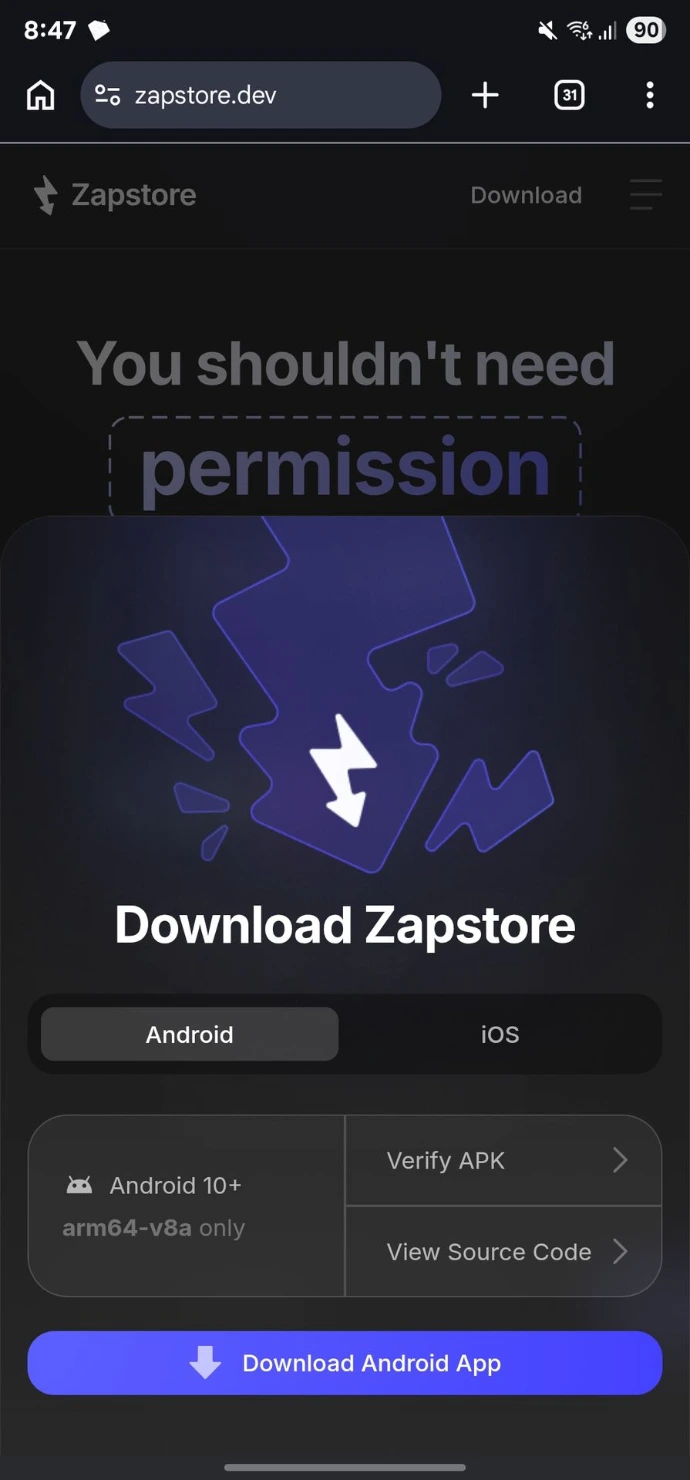
- Download Zapstore
Visit zapstore.dev and go to "Download" to get it. Your phone may ask permission to install apps from unknown sources. Allow this. It is necessary to proceed. - Find and install Gart
Open Zapstore, search for "Gart" and tap Install, or open Gart on Zapstore on your phone. Zapstore handles all future updates automatically. You do not need to reinstall Gart to receive new versions.
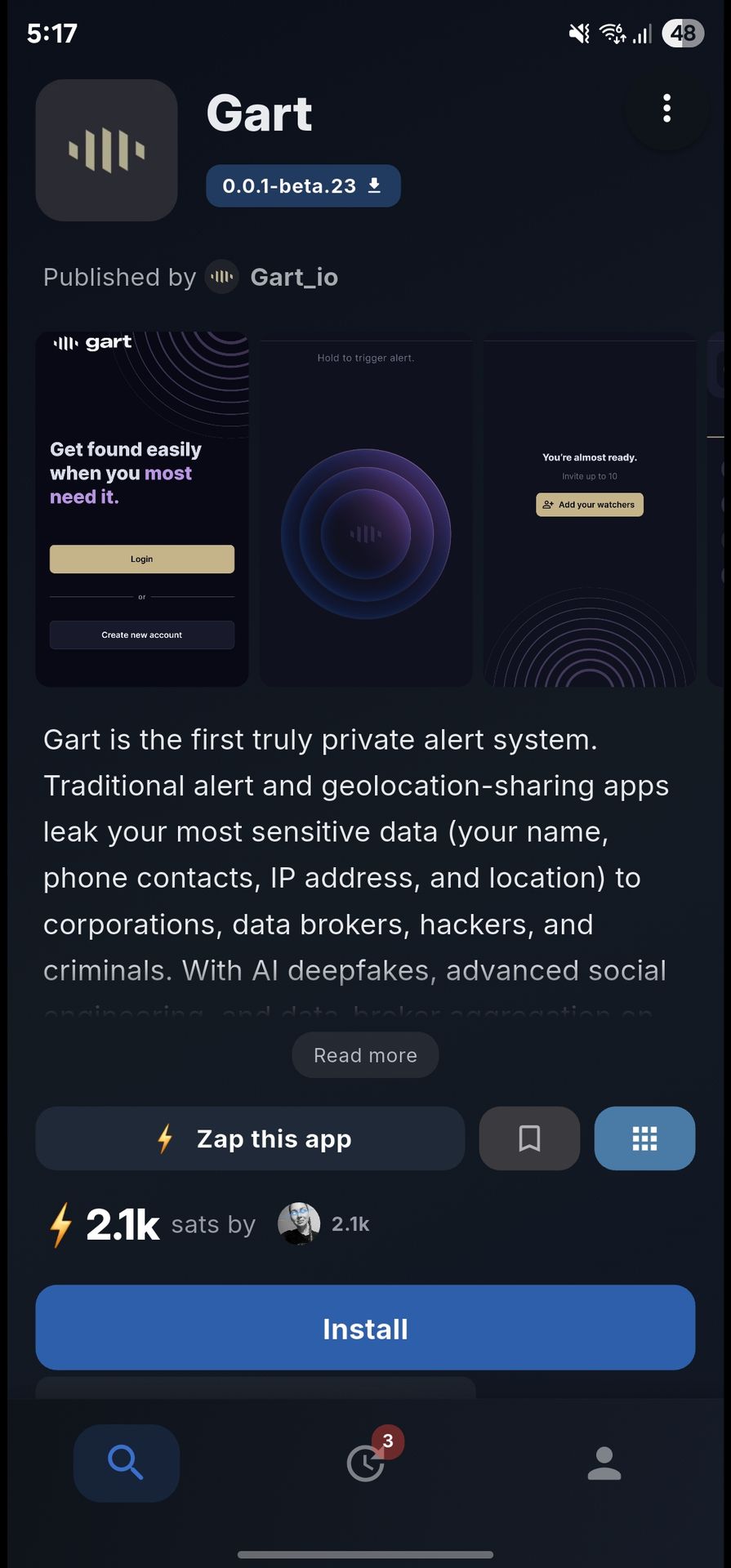
Some screens in this chapter come from an older app version, where Responders were called Watchers.
4. First launch and permissions
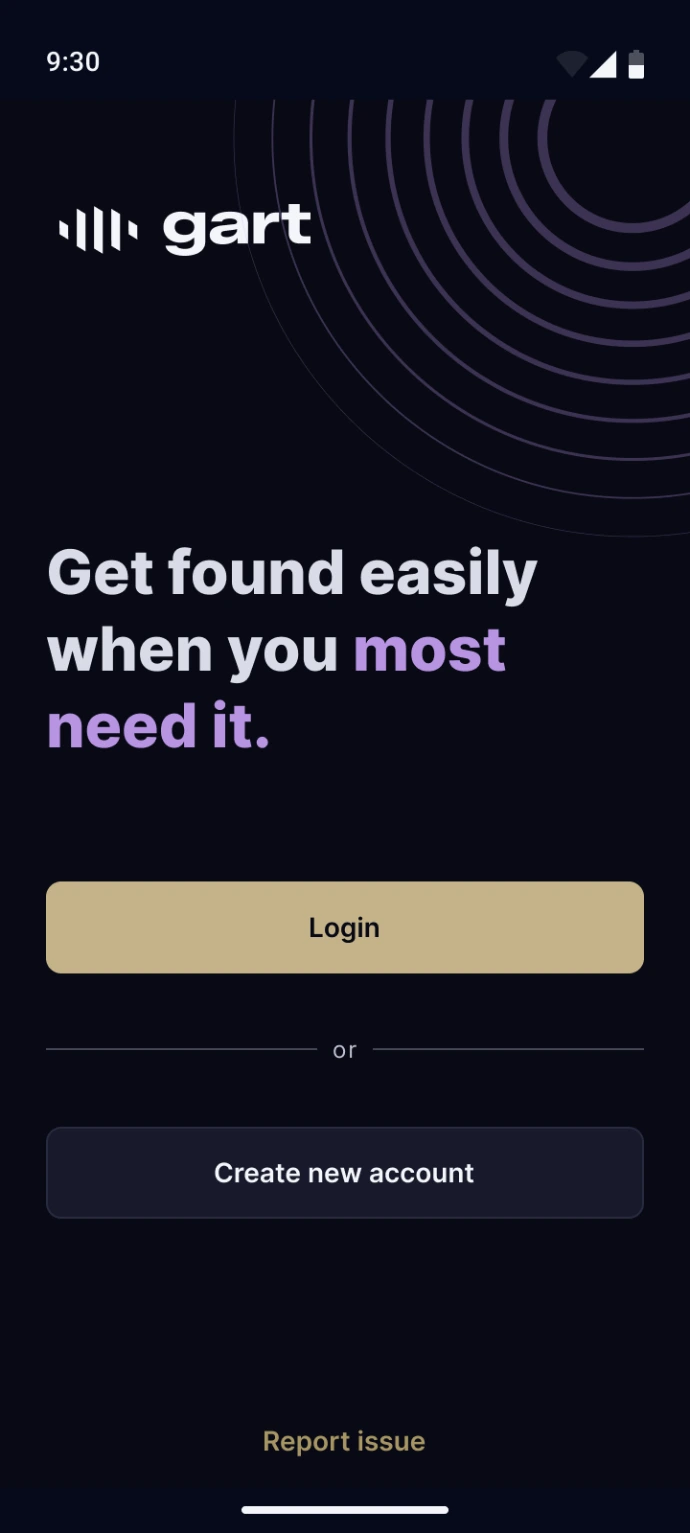
On first launch, Gart displays a login screen. After you log in, the app guides you through a few permissions required for the app to work properly. Each one directly affects whether alerts fire and arrive reliably. The permission screen explains each one before you grant it, and all six can be confirmed from a single screen with Allow all.
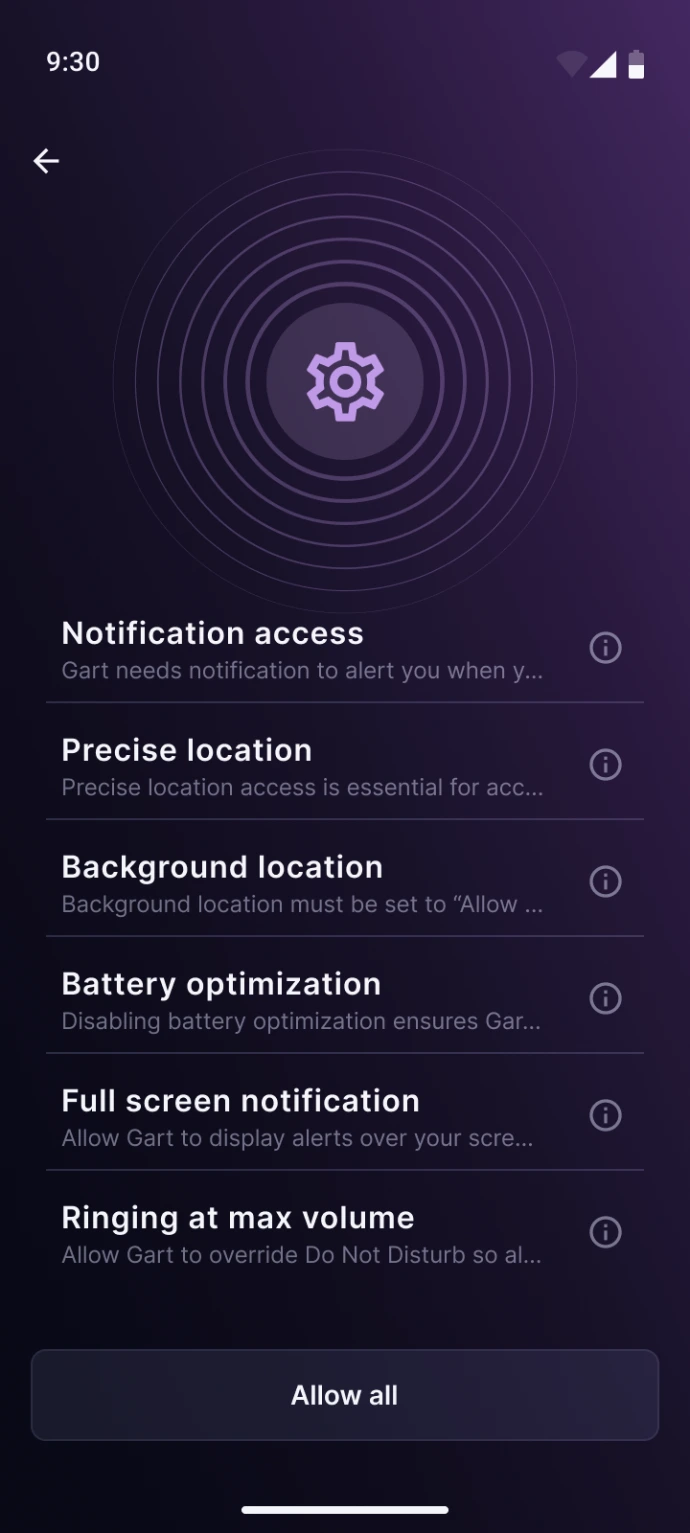
Choose Precise location
When you trigger an alert, Gart shares your GPS coordinates with your Responders. Choosing Precise in your settings allows your safety network to know exactly where you are when you most need it. Your coordinates can only be read by your Responders (only they have the decryption keys).
Allow background location
Your location must be reliably available even when the Gart app is not open. Without this permission, the app cannot capture your coordinates if you trigger an alert with your phone locked or while using another app.
Remove Gart from battery optimization
Android's battery optimization can suspend apps. Removing Gart from battery optimization keeps it running reliably in the background, so alerts fire and arrive without delay, even when not needed for a long time. Battery optimization is one of the most common reasons alert apps fail silently.
Allow full-screen notifications
When an alert arrives, Gart displays an urgent notification even if your phone is locked. Allowing Full-screen notifications will override Do-Not-Disturb mode and allow your Responders to see incoming alerts in any situation.
Allow ringing at max volume
This permission allows Gart to override Do Not Disturb mode so that incoming emergency alerts can ring at full volume.
Disable Manage app if unused
Android revokes the permissions of an app you have not used for a while. We hope you never need Gart, but it has to work on the day you do, so turn this setting off for Gart.
5. Core concepts
Your identity
Gart uses a Nostr identity to connect you to your circle. If you don't have one, the app creates it in one tap. Everyone in your trusted circle receives a Nostr identity the moment they install the app.
When you first log in, your public identity announces that it's on Gart, so that your contacts can easily find you in Gart.
Chat messages, alerts, and group setup are fully encrypted. But your Nostr profile itself is public, like an email address or an X account, with an avatar, name, and npub visible to anyone.
To separate your alerts and communication from your public user identity, Gart generates a second, operational identity used for most actions inside the app. This is what lets you use a Remote signer for login while keeping day-to-day use frictionless (being asked to approve every individual signature would create hurdles at exactly the wrong moment).
The operational identity handles signing every action automatically in the background. Your main Gart identity can be used in any other Nostr-compatible apps.
Easy recovery
Your group memberships and history are bound to your main user identity, not your device. If you lose your phone, install Gart on a new one and log in with your private key or your Remote signer. Gart finds your latest app backup and offers to restore it.
Gart keeps two types of backup:
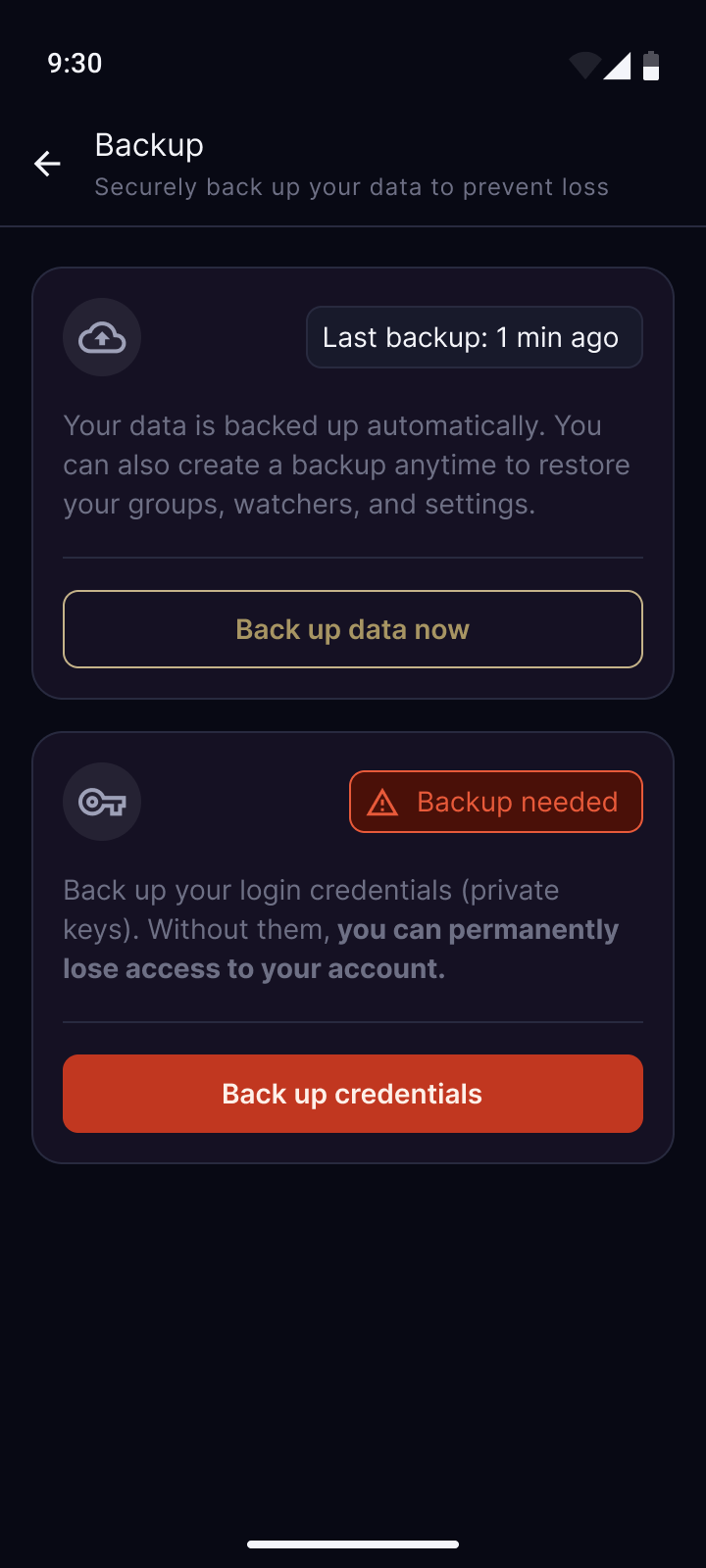
- App data backup. Your group data, memberships, and settings are backed up automatically every day and whenever you log out. You can also trigger it manually at any time from Settings > Backup. The backup is encrypted on your phone and stored on Gart's backup server, and only your key can decrypt it.
- Key backup. If you created your Gart account directly in the app, you will be prompted to back up your private key from Settings > Backup. This step is important: your key is the only way to recover your identity if you lose access to your device. If you logged in with a Remote signer app, your key is managed by that app and no separate key backup is needed.
Some screens in this chapter come from an older app version, where Responders were called Watchers.
Groups
A group is a private encrypted channel between you and your Responders. Everything inside a group is visible only to its members.
As a Responder you can belong to multiple groups simultaneously. As a Group Owner you have one group of trusted people, your family members, closest friends, close protection or security manager, your team.
Although you can invite up to 10 Responders, we recommend keeping your group tight, closer to 3 to 5 people. Let us know if you have different needs (large families, different use cases).
Roles
Group Owner
The Group Owner creates and manages the group. They are the only person who can trigger alerts in their group. They control who is invited and who remains a member. A Group Owner is the person whose safety the group exists to protect.
Responder
A Responder is a trusted contact who monitors the group and responds to alerts from the Group Owner. When a Gart alert fires, Responders receive the Group Owner's location and instructions to take action. Responders cannot trigger alerts themselves.
One person can be a Group Owner in their own group and a Responder in other people's groups at the same time. Roles are per-group, not per-account.
Test and Live alerts
Test alert
Learn how to alert while keeping full privacy
A Test alert lets the Group Owner test the full alert process without triggering a real emergency response.
Every Test alert locks two things in place: the message and the location, always pointing to a fixed coordinate on Mount Everest.
Responders receive the notification, hear the alarm sound and see the response screen. Your real coordinates stay private. Run a Test alert with every one of your Responders before you rely on the real one.
Live alert
Broadcast your location now
As a Group Owner you can trigger an alert from the app home screen. Gart captures your current GPS coordinates and encrypts them together with your pre-defined alert message, then broadcasts both through a public decentralized network, making alert delivery resilient and removing the need for any Gart servers.
We don't create centralized honey-pots with user data and have removed ourselves as a central point of failure from the alert delivery.
Your Responders receive the message shortly and decrypt it. The message and the location are the two things they act on, so they can respond quickly and calmly.
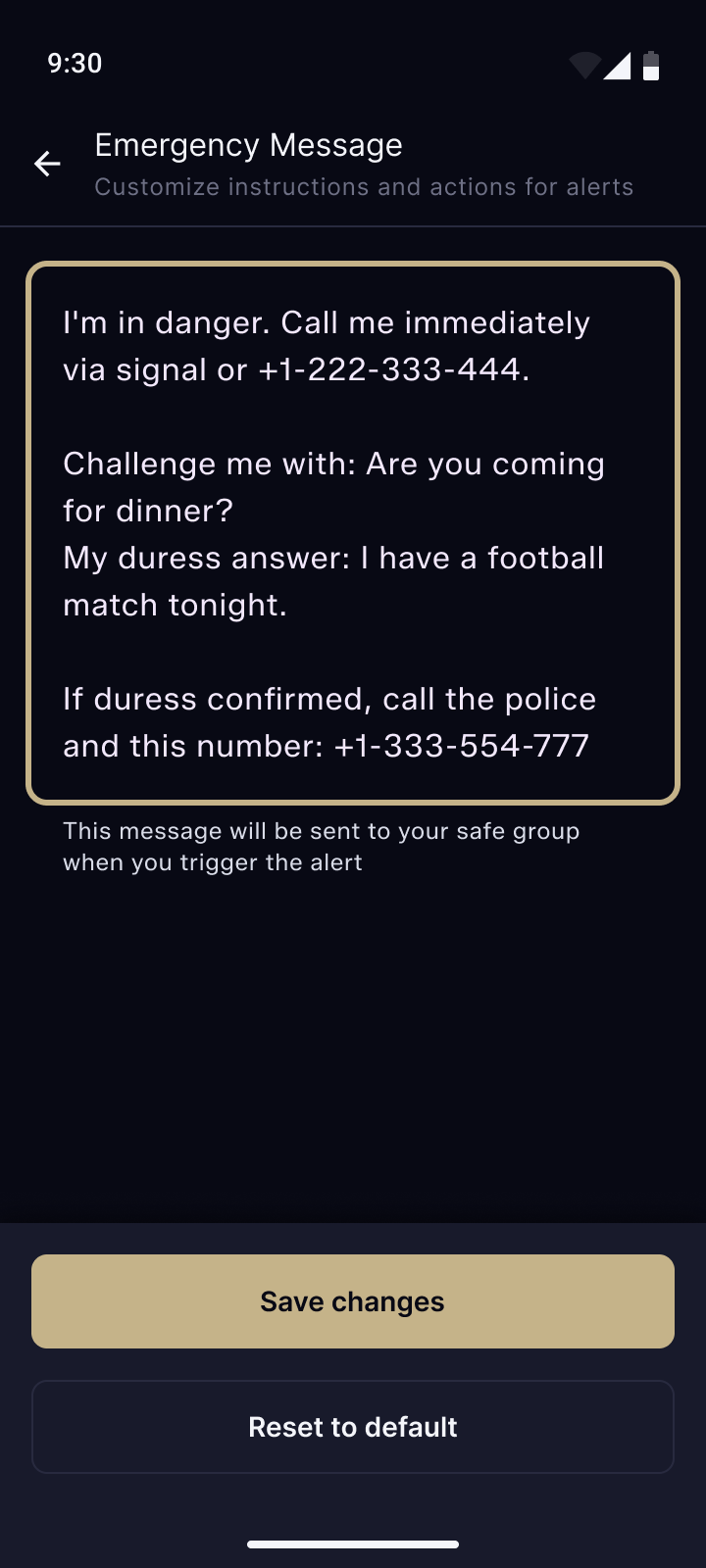
Write the alert message before you need to. It should include the key information for Responders: instructions, key contacts, duress and safe word, or how to verify whether you are all right.
6. Set up your Group
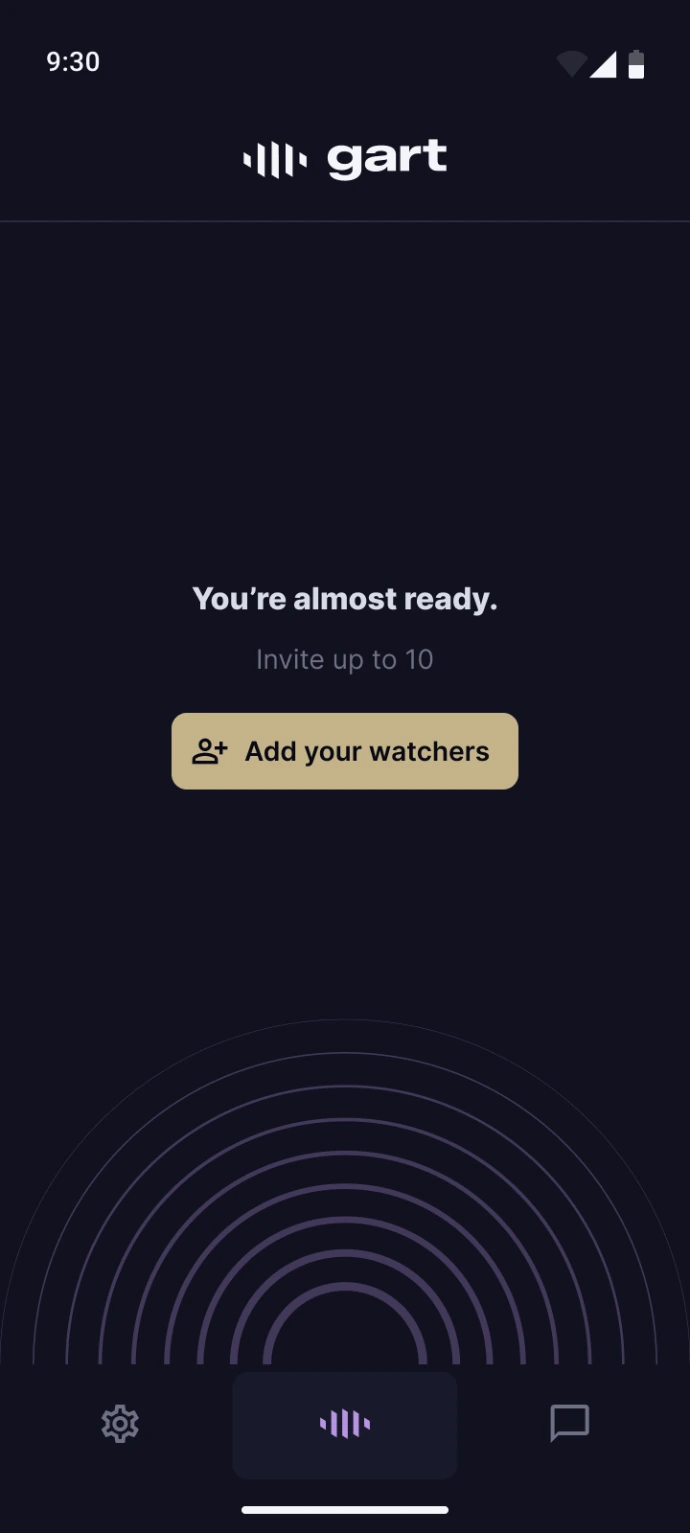
Upon first login, your Group is created automatically.
Invite your Responders
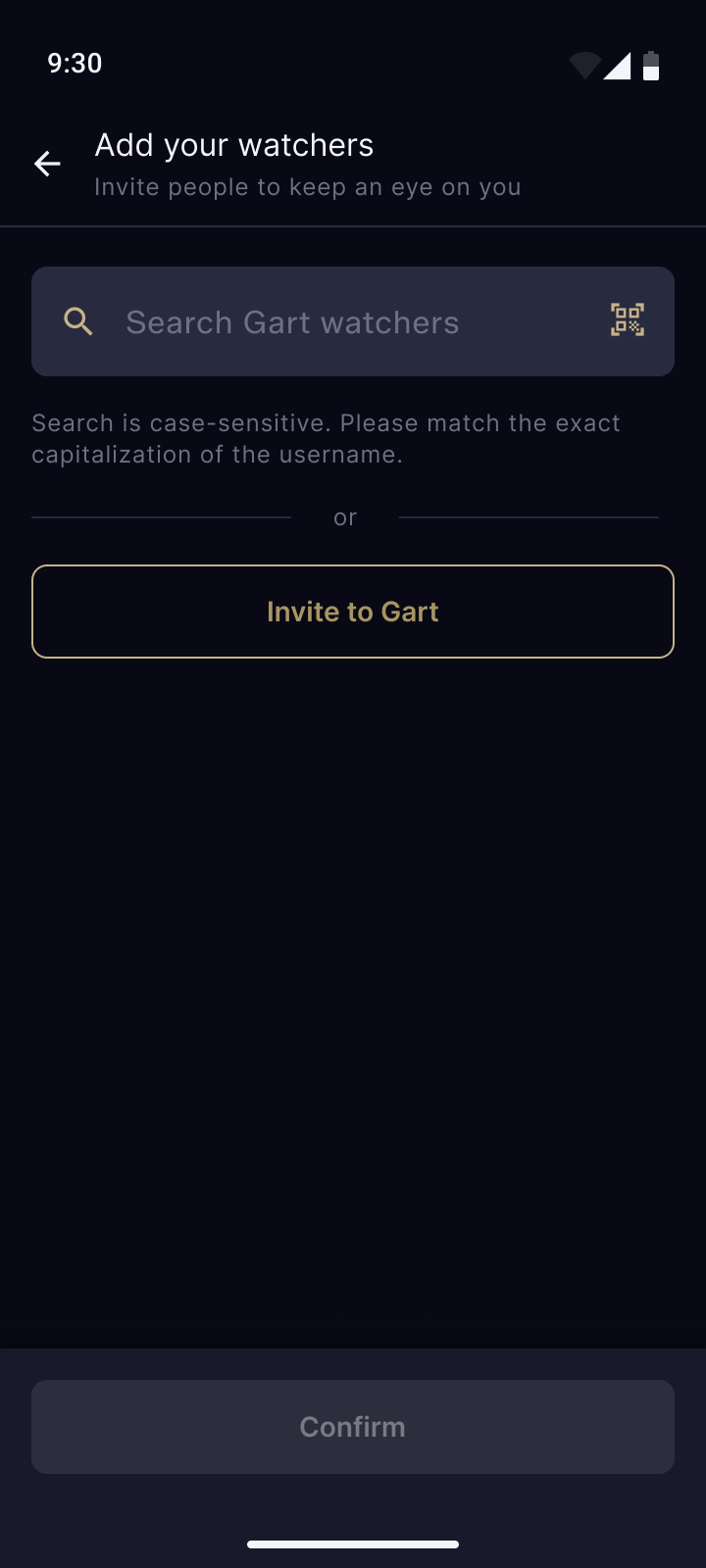
To find existing Gart users directly in the app:
- Search by username or npub (the Gart identity).
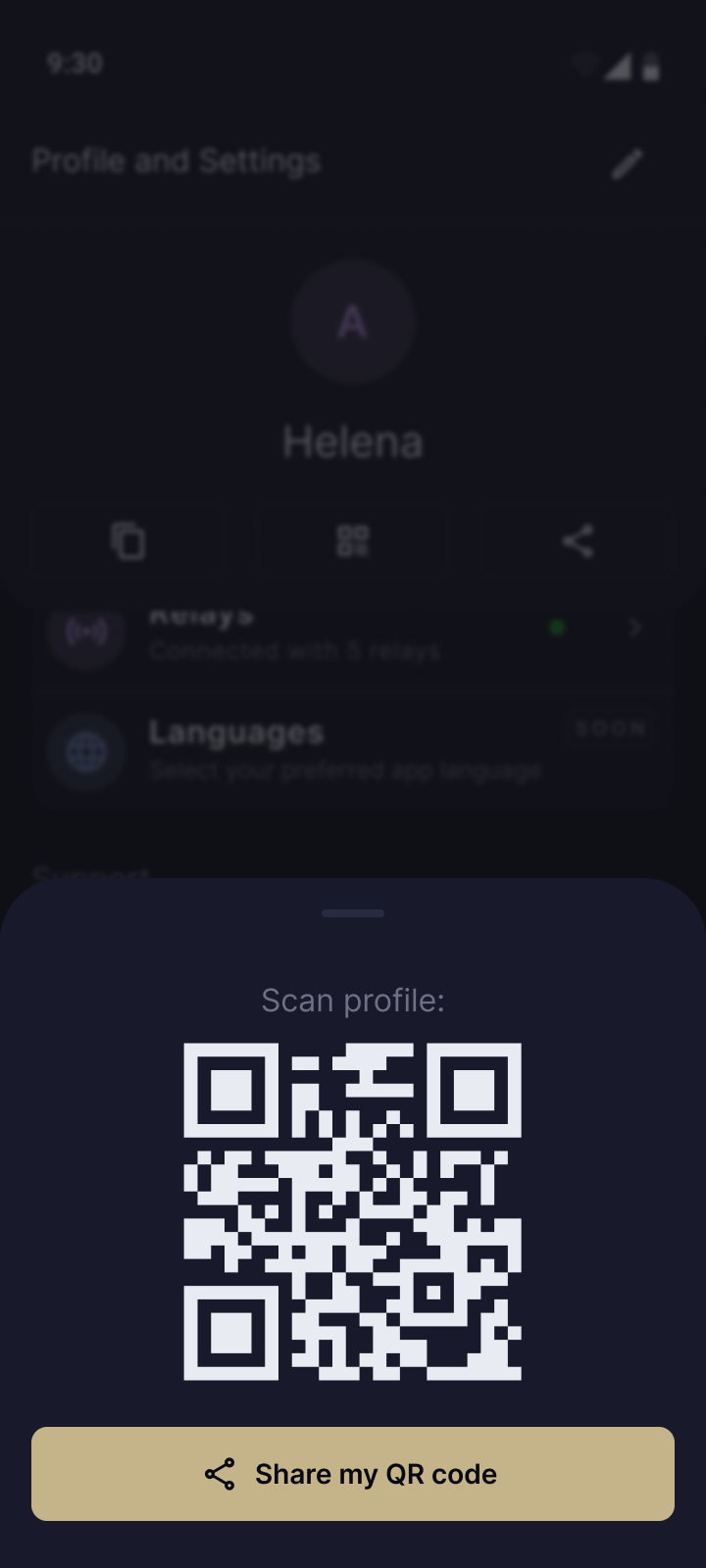
- Scan their profile QR code to pull up their profile and send an invite to them in one step.
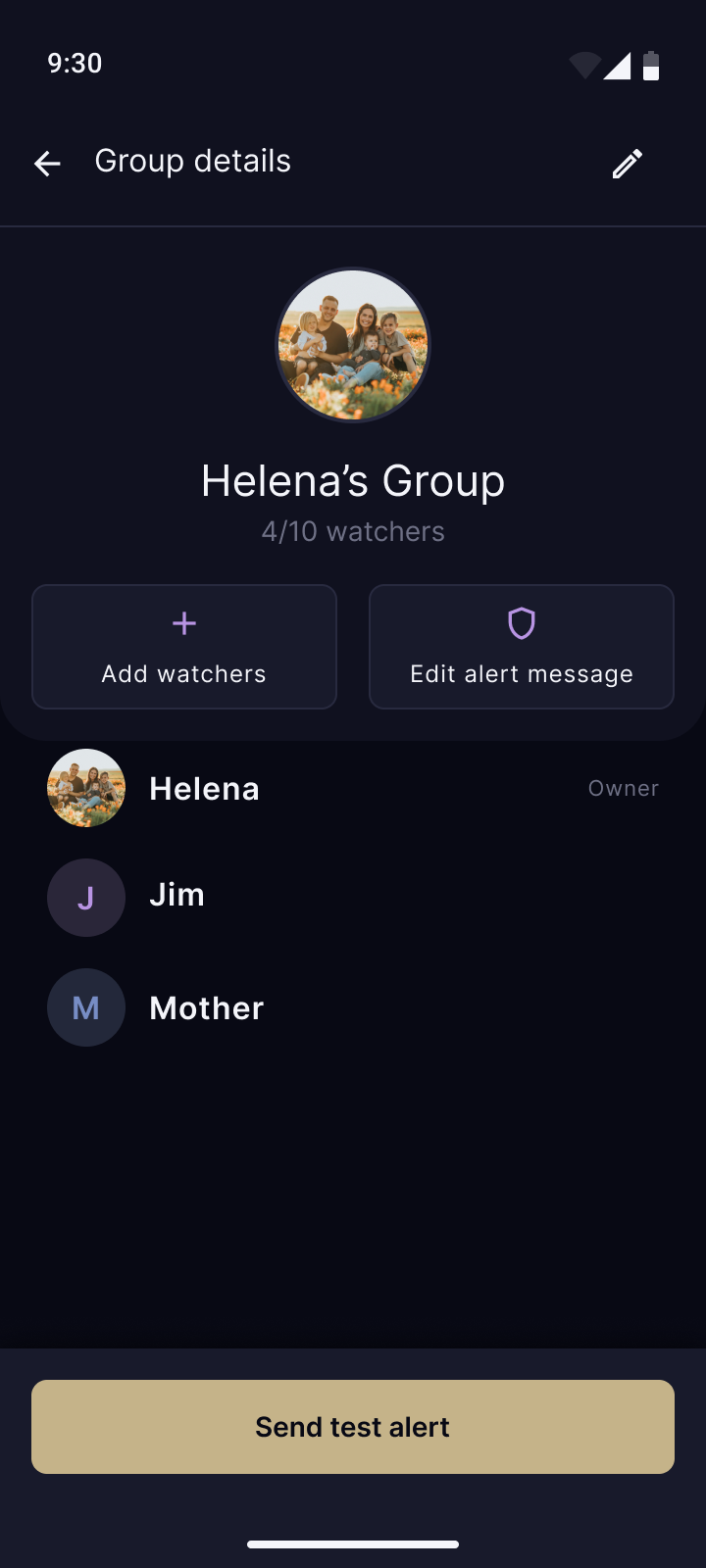
For contacts who don't have Gart yet, copy an invitation link in your User Profile and share it via Signal, email, or any channel you use together. The link guides them to Gart installation. Once they're in, you can add them in your Group through the + Add Responder button.
Only existing Gart users can be added to your group. Contacts without the app receive an invitation link first.
Some screens in this chapter come from an older app version, where Responders were called Watchers.
Remove a Responder
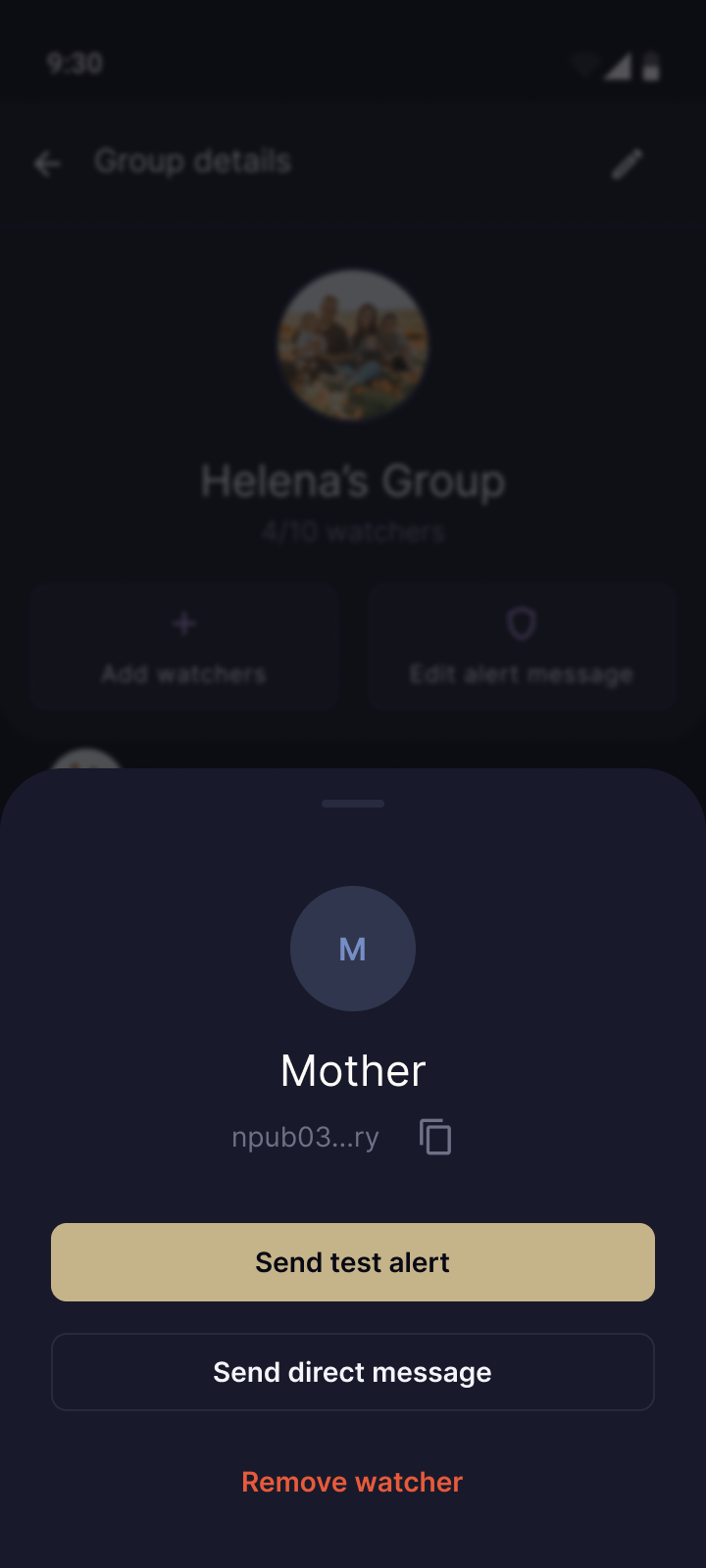
To remove a member from your group, go to the Group management page, tap the Responder you want to remove, and select Remove. The removed Responder will no longer receive alerts and will lose access to the group.
Responders can also leave a group themselves from the same Group management page.
Accept an invitation
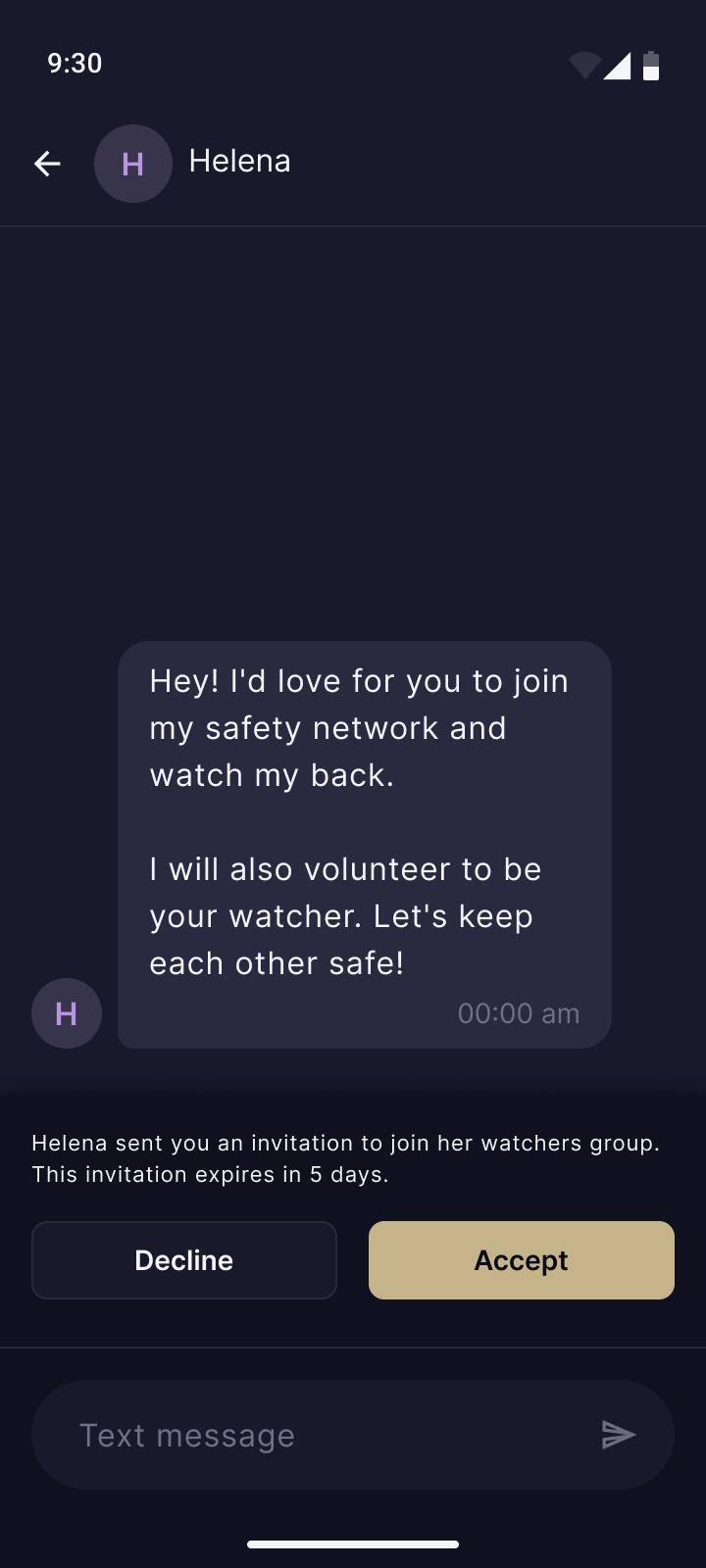
Once you receive a group invitation, tap the notification or open the chat with the inviter and tap Accept or Decline.
- If you Decline, the sender will be notified and the invitation will be removed.
- If you Accept, you will be added as a Responder to their group.
7. Write your alert message
When you trigger an alert, your Responders need specific instructions to be able to respond quickly and with calm confidence. In an emergency they should not have to hunt for basic information or work out how to reach you and check whether you are under duress.
Go to your group detail and edit your Alert message.
- Contact methods. Add how your first responder (the Responder who taps I'm handling this) should contact you. Provide one or two ways to reach you on the phone.
- Safe and duress words. Add your safe and duress words, or a way to challenge you to verify duress. The call should not start with "Hey John, I received an alert, are you ok?" We can teach you how to do this without raising suspicion in Gart in-person programs.
- Important information. Leave any other important information, such as contact to your lawyer or your security officer at your company or your health information and medication needs.
- Emergency services. For urgencies, leave instructions on how to inform the police or rescue services, with your description and basic details such as your name and date of birth.
- Other requests. What else would you like to add? Let us know by submitting a feature request directly in the app (Shake the phone while Gart is open).
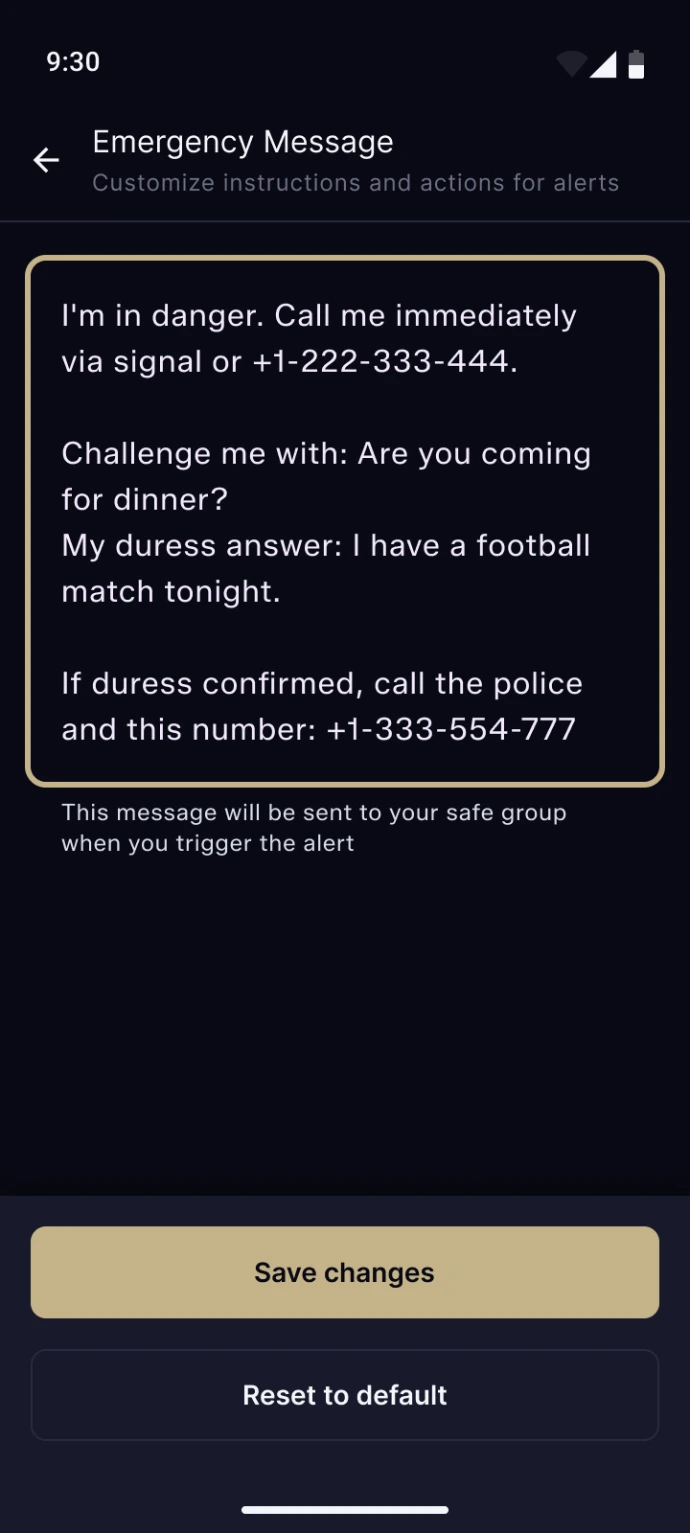
Some screens in this chapter come from an older app version, where Responders were called Watchers.
8. Trigger an alert
Test alert
Test alerts are available from within the group screen. Select the Test alert option, confirm, and hold the button for about 2 seconds.
Your Responders receive a notification clearly marked as a test. The location is always Mount Everest, not your real position. Use Test alerts to verify that every Responder in your group receives alerts reliably.
Live alert
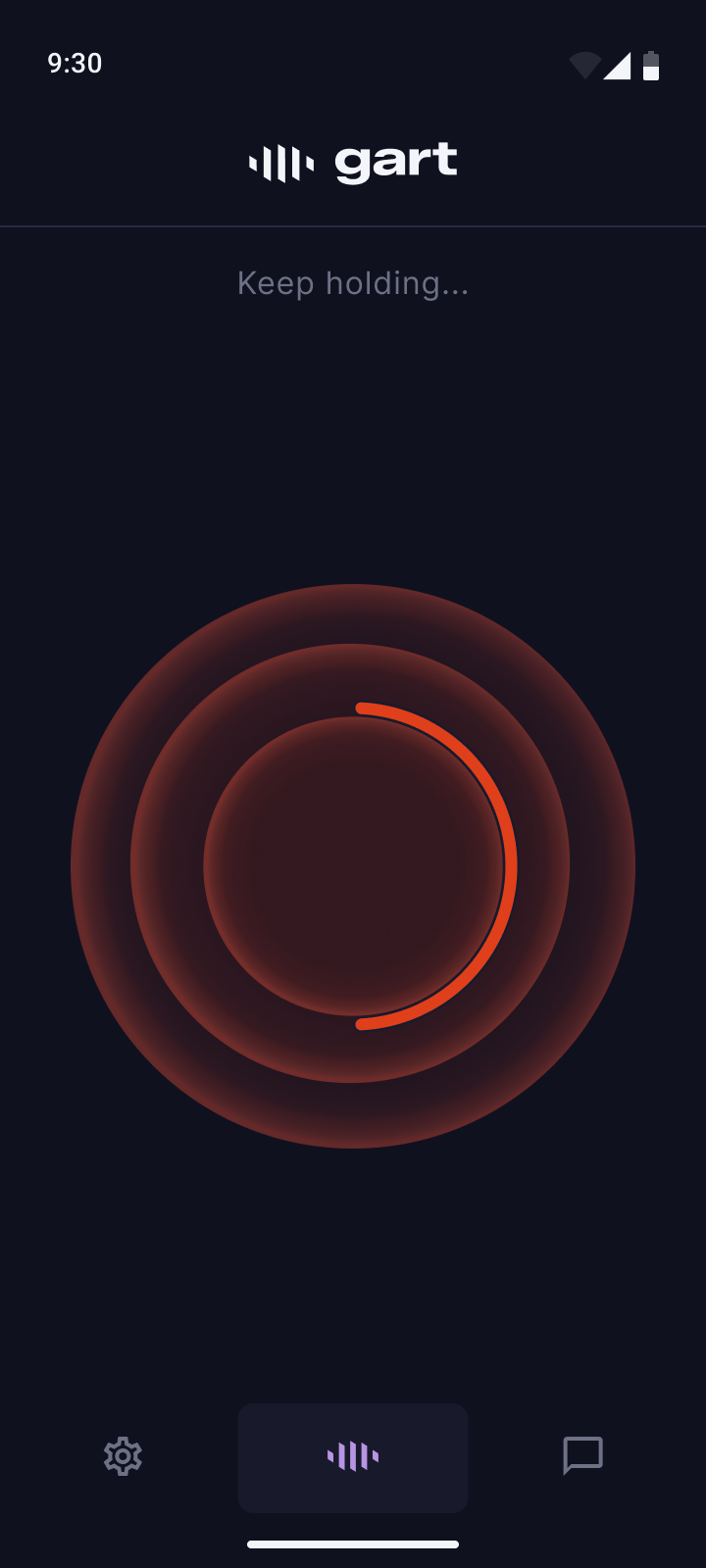
The emergency alert button is on the Gart home screen. Hold the button until it activates.
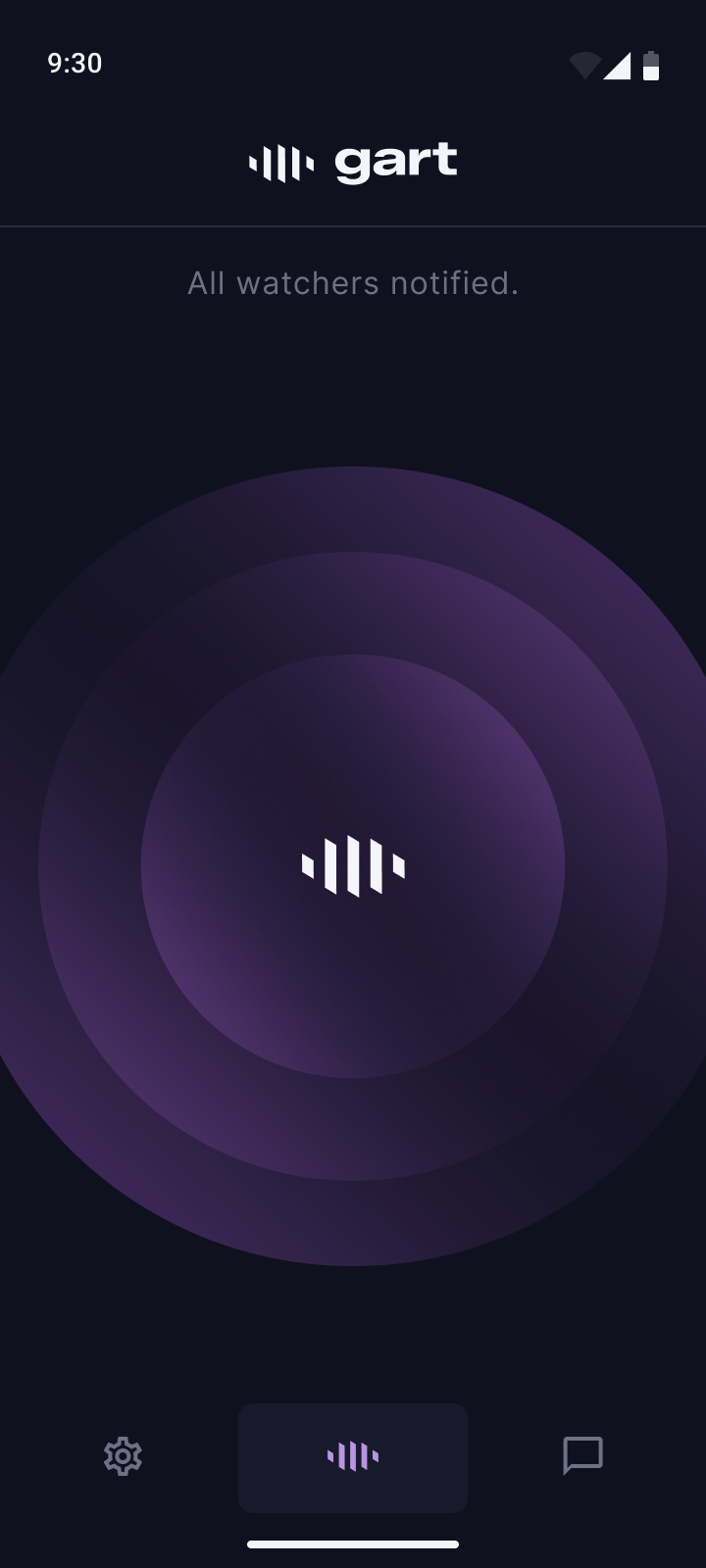
Gart broadcasts your current GPS coordinates to the group as a message. Responders can open your location in their default maps application.
While the alert is active, Gart updates your location every 15 minutes.
To stop the alert, open the app's main screen and hold the button for 2 seconds.
If your device's location is turned off, the alert cannot be sent. Make sure GPS is enabled before you need it.
No internet connection? The app will display a warning at the top of the screen but still allow you to hold and trigger the alert. After triggering, it will show a "Network error" message and keep retrying in the background. Restore your connection as soon as possible so the alert reaches your Responders.
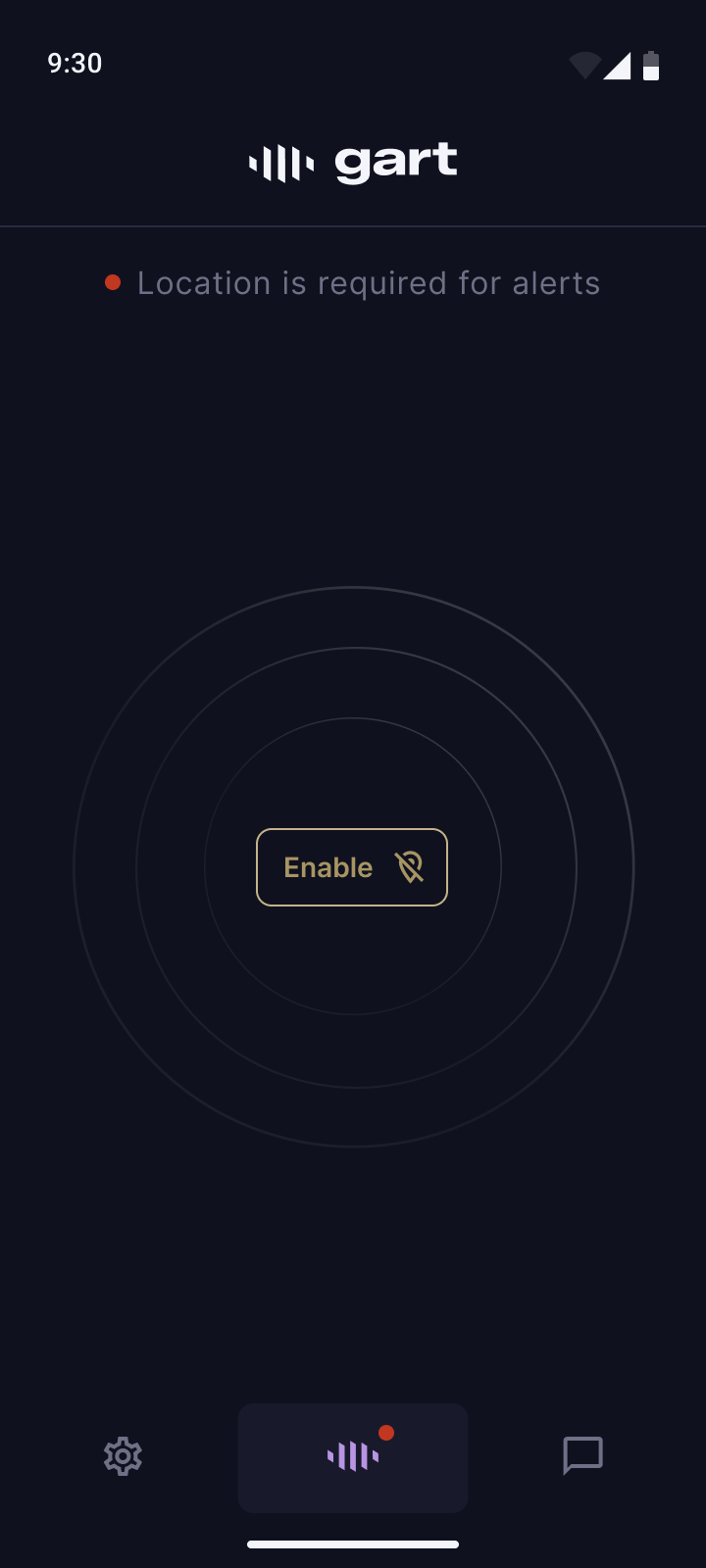
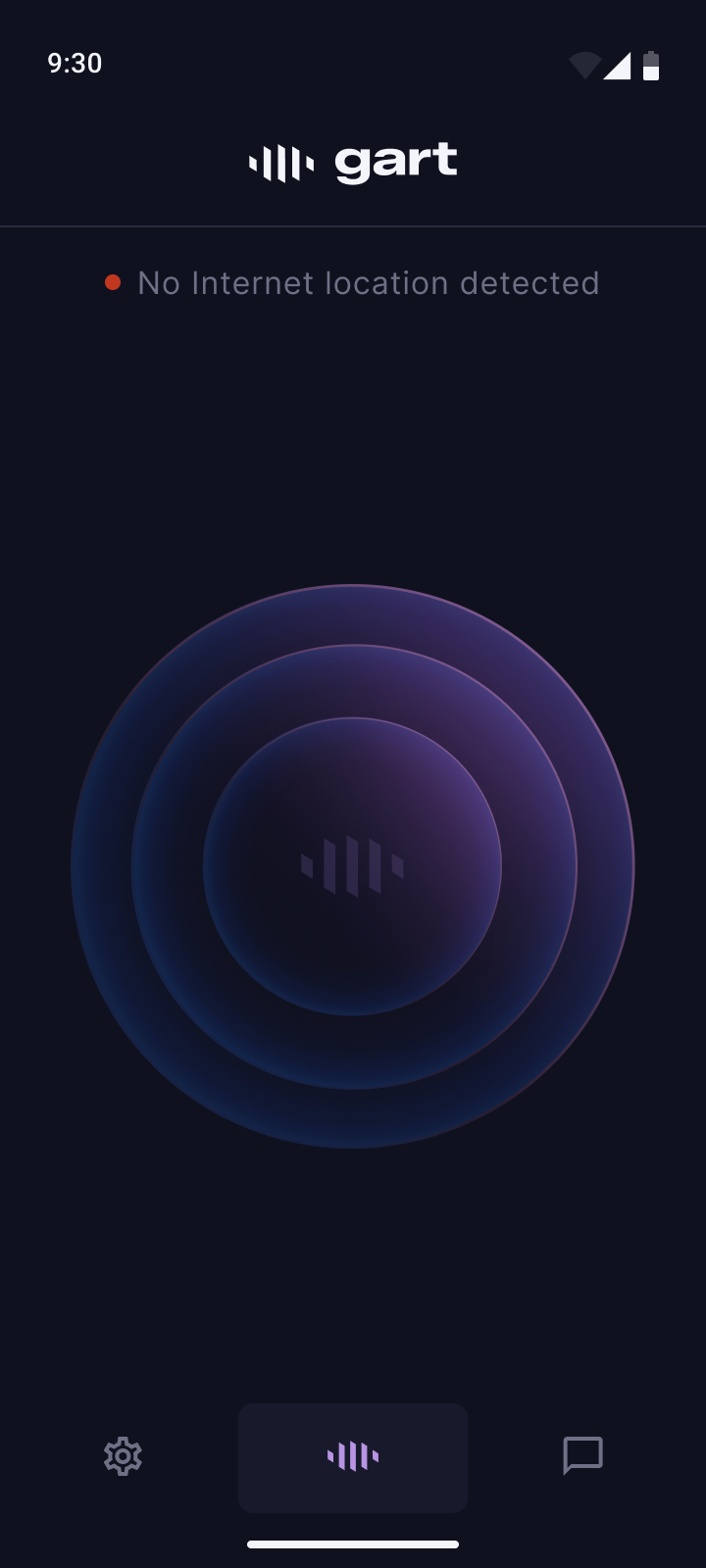
Together with the location, Gart broadcasts a default alert message. You can edit this message before sending the alert. Include the most important instructions: whom to contact and what action to take. Once sent, the message cannot be edited.
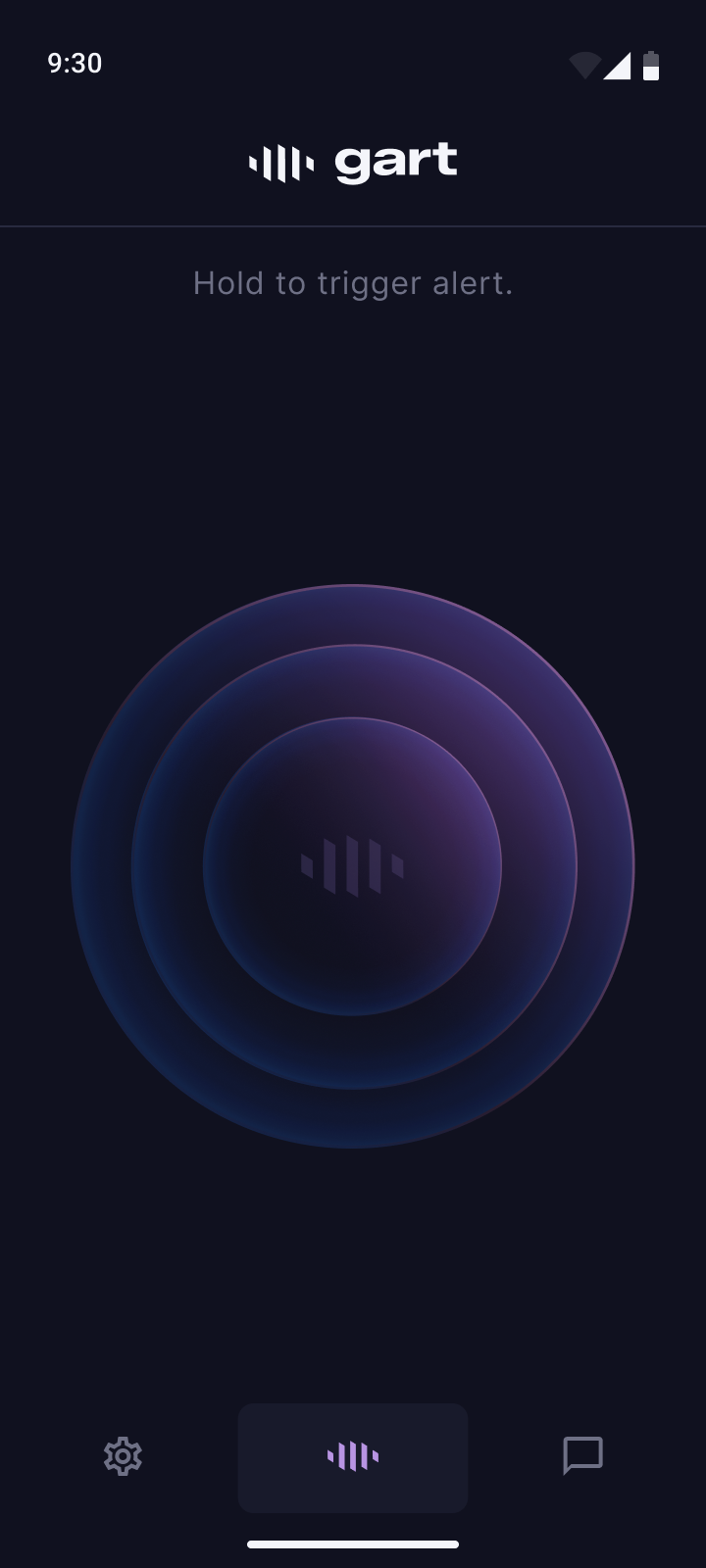
Some screens in this chapter come from an older app version, where Responders were called Watchers.
9. Respond to an alert
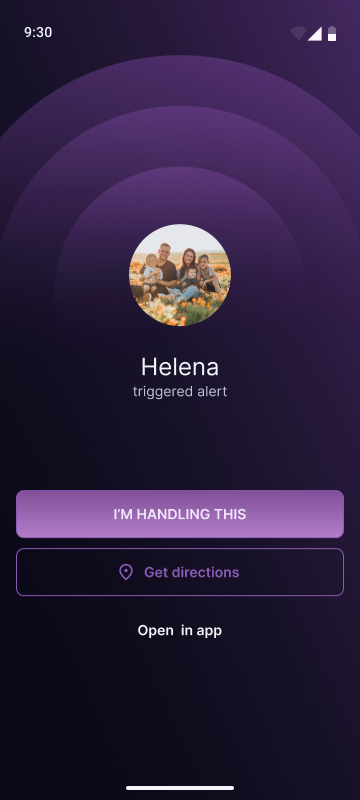
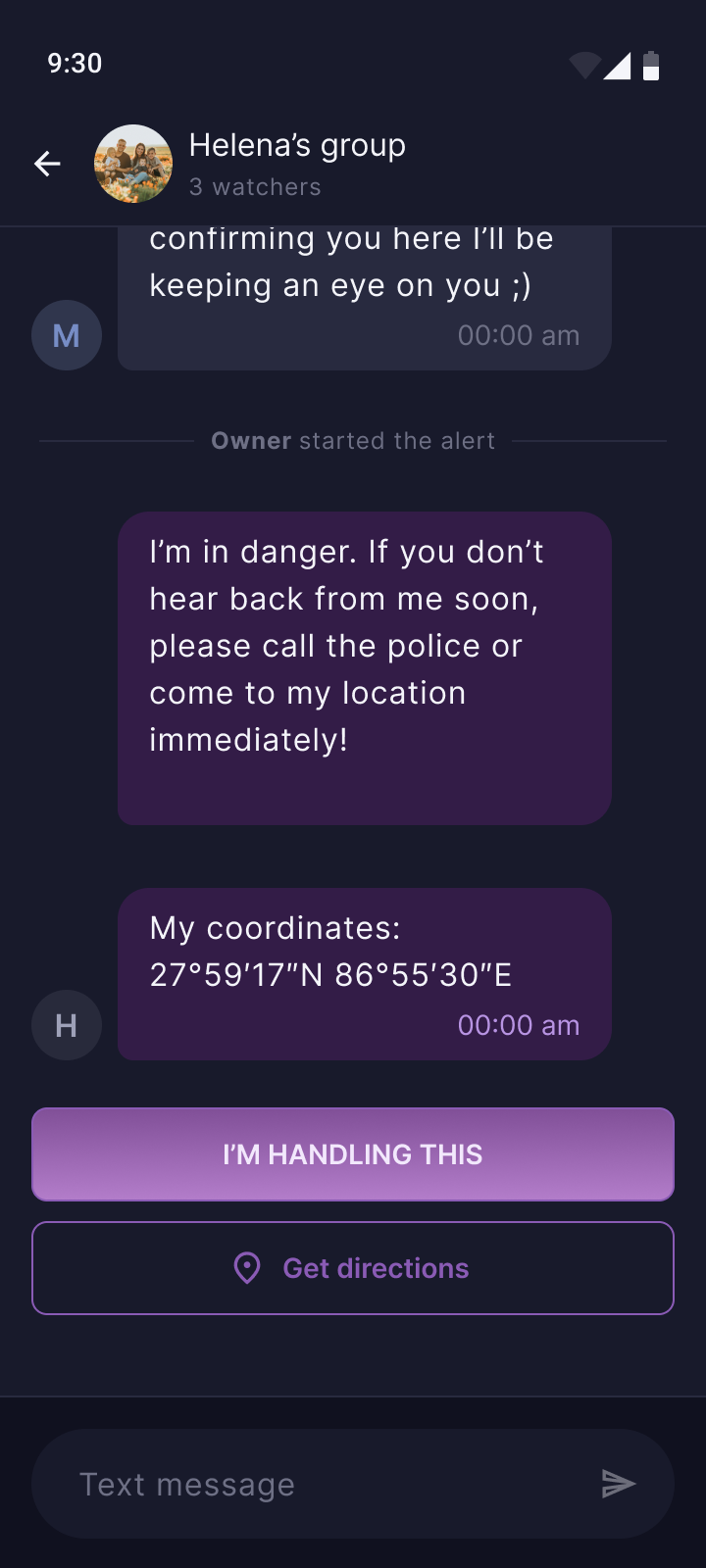
When an alert fires, Responders receive an urgent notification that breaks through the lock screen. It rings at maximum volume, whatever the phone's settings, even in Do Not Disturb mode.
Inside the group, Responders see:
- The alert message written by the Group Owner.
- The Group Owner's current GPS coordinates as text.
- An Open in Maps button that launches the coordinates in their device's default maps application.
- An I'm handling this button.
Some screens in this chapter come from an older app version, where Responders were called Watchers.
"I'm handling this"
Responders can tap an I'm handling this button in response to an active alert. This posts a visible acknowledgment inside the group, but doesn't send any device notification to the Group Owner. Only the Responders will be able to see in the group chat who is actively involved. Several Responders who know about the emergency can then coordinate one response.
For the Group Owner, the app will block UI (except the button to stop the alert) and notifications during the alert. This is to ensure that the app will not attract the attention of the attackers and to avoid disclosing information about the coordination among the Responders.
10. Report issues and feedback
Your feedback during the beta can shape the product. Report problems, bugs or feature requests directly from the app.
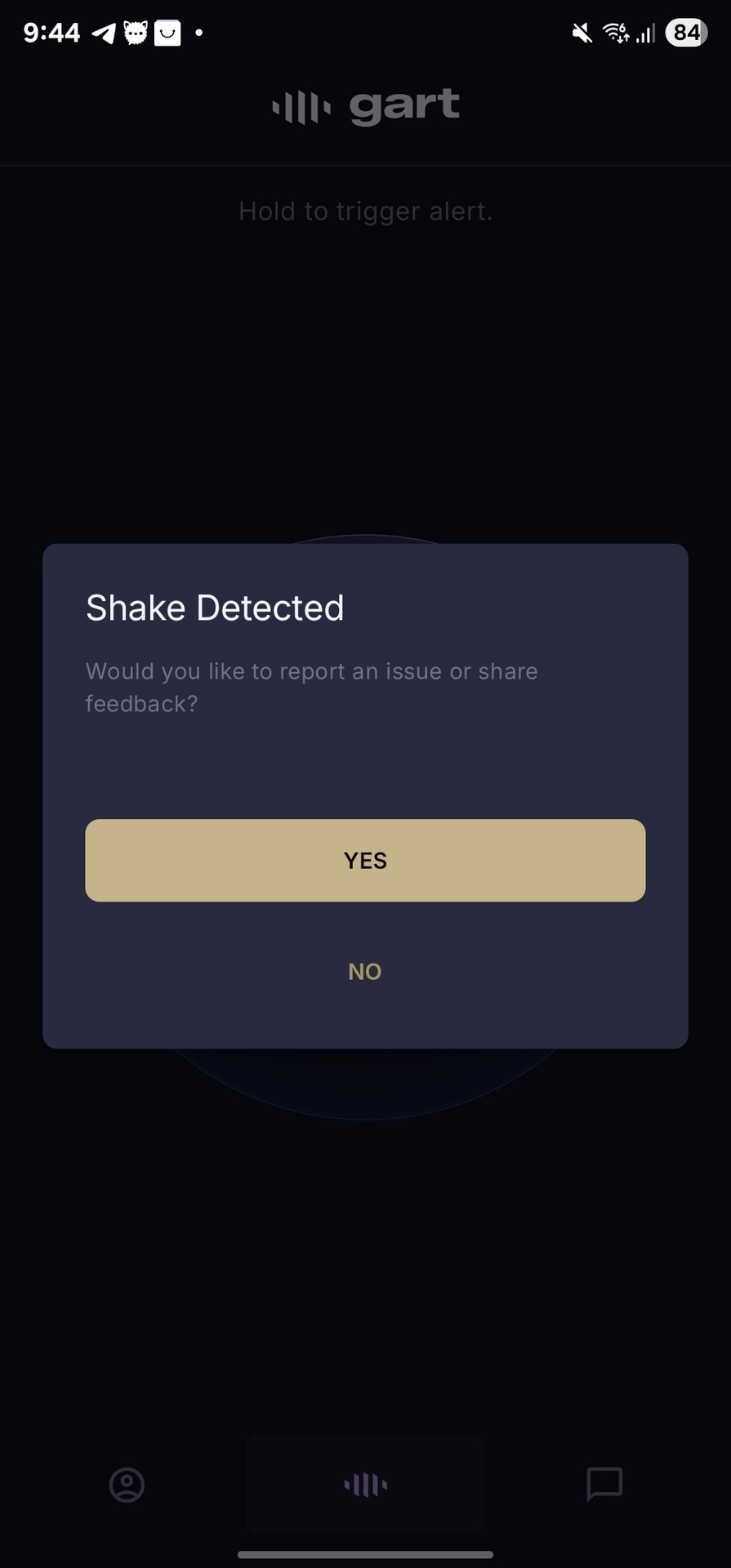
Bugs or UI issues: shake your phone
- From anywhere in the app, shake your device the moment you spot an issue.
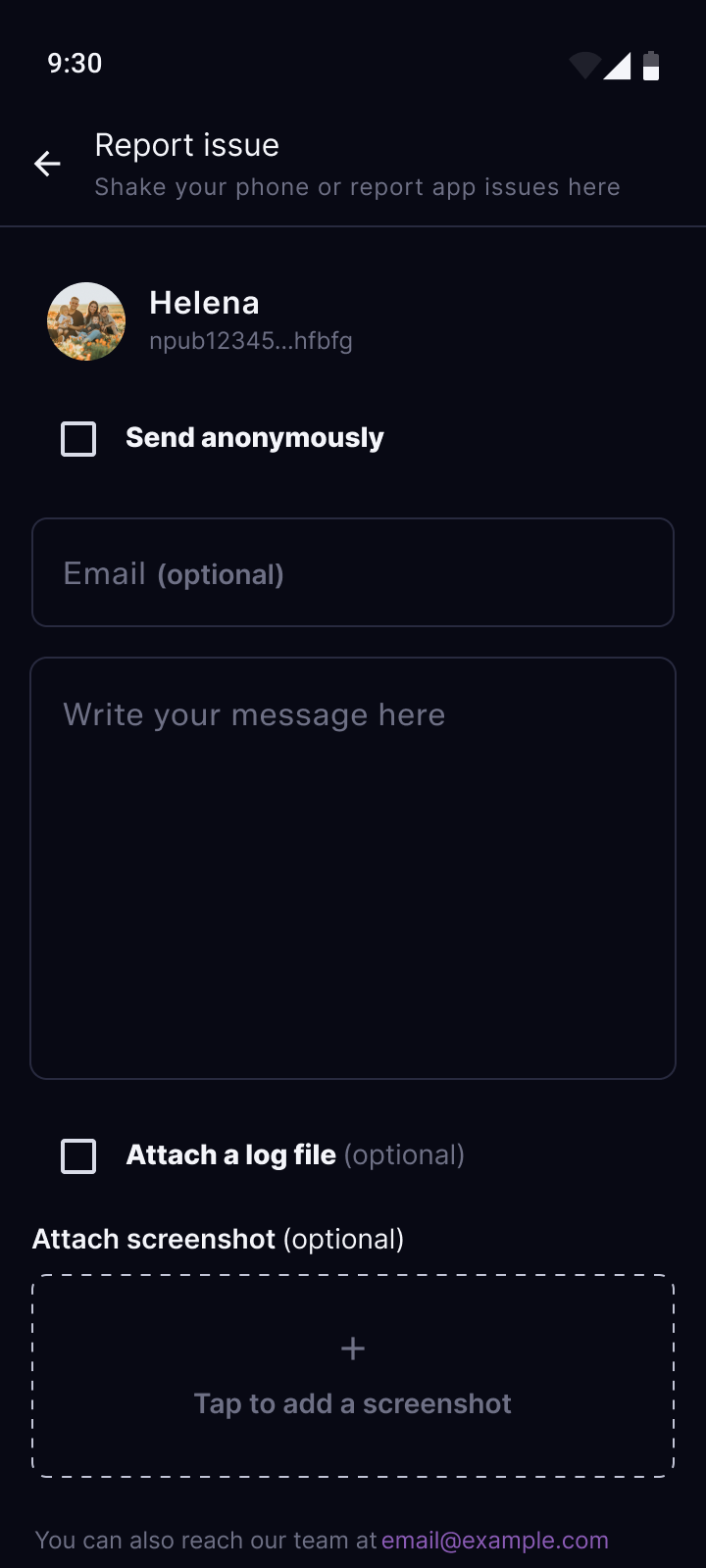
- A screenshot is captured automatically. If you'd prefer not to include it, remove it from the Report Issue screen before sending or add another screenshot.
- If you'd like a response, include your email address in the report form.
- Add a brief description and tap Send. The report and its technical logs are sent to our support team.
You can also reach the feedback form via Settings > Report an Issue.
Beta testers join here
For questions and to share your npub with other testers, use our beta testers group.
To join the group, ask for an invite link through the contact form (subject: Gart app).
11. Privacy and data
We are building Gart with one position on data: collect nothing you don't need. Your Gart account is a cryptographic keypair created on your phone, with no email address or phone number behind it. The one copy of your data that Gart stores is your encrypted app backup, which only your key can decrypt.
All communication travels device to device via the Nostr network. Every piece of data is encrypted before it leaves your phone. Gart cannot read your messages or access your location. Read the full Privacy Policy.
- No email or phone number. Your account is a keypair, not a registration with your phone number or email. No social graph.
- End-to-end encrypted. Every piece of data is encrypted before it leaves your phone. Gart cannot read your messages or access your location.
- Peer-to-peer. Gart runs no servers for alerts and chat messages: they travel over public Nostr relays. The one server Gart runs is an encrypted backup server.
What we collect during the beta testing
When the app crashes, the app sends a technical report to the team. It contains crash data only, no message content, no location. A separate analytics service records anonymous usage patterns to help us improve the app. We collect no personally identifiable information. Nothing traces back to you.
12. Updates
Gart releases updates at least once a week during the beta, or more frequently when fixes are ready. Zapstore notifies you when a new version is available. Install each update as soon as Zapstore offers it.
If you are experiencing an issue, check that you are on the latest version before reporting it. The current version number is visible in Settings > About.
13. Get help
The Signal group is the primary support channel during the beta. To join the group, you need to sign up as a beta tester first. Ask questions or share your Gart identity, so other testers can find you.
For bugs and technical errors, use Shake to Report in the app. It captures the context the team needs automatically. The group chat cannot.
If you prefer direct conversations, reach us through the contact form.
Thank you for testing with us.
Gart